
The purpose of loot filtering is to make loot ESP display only the items worth taking a detour for. In a Tarkov raid, there are many scattered items and containers; when all are shown, the screen can be covered with text, making it hard to see players, and frame rates may suffer.
It is recommended to configure in this order: first set the ruble value threshold, then use category whitelists to add back low-priced but needed items, then handle containers separately, and finally use display distance and hotkeys to decide when to show loot information. Below, we explain each layer's setup method and conditions to note.
What rule layers typically make up a loot filter
Similar Tarkov cheat loot ESP filters often have the following layers:
- Value threshold (rubles): Set a minimum price; items below this price are not shown. This layer filters out most clutter and has the greatest impact.
- Category filtering: Categories can be individually toggled or highlighted; common categories include medical items (such as LEDX, various injectors), valuables (such as Bitcoin, graphics cards), quest items, keys, and keychains.
- Rarity or value color coding: Items are divided into tiers from common to high value, each with a different color for quick priority assessment.
- Container markers: Weapon crates, safes, buried stashes, or barrels can be marked separately, controlled independently from ground loot.
- Display distance and hotkeys: Set the display range for loot text, commonly adjustable from about 50 meters to over 400 meters; also set a hotkey to toggle loot display on and off.
Note that these are common practices among similar tools and do not mean every product has all layers. Whether a specific cheat allows importing custom item name whitelists or blacklists, and whether the value threshold is a free slider or fixed tiers, depends on its own product page.
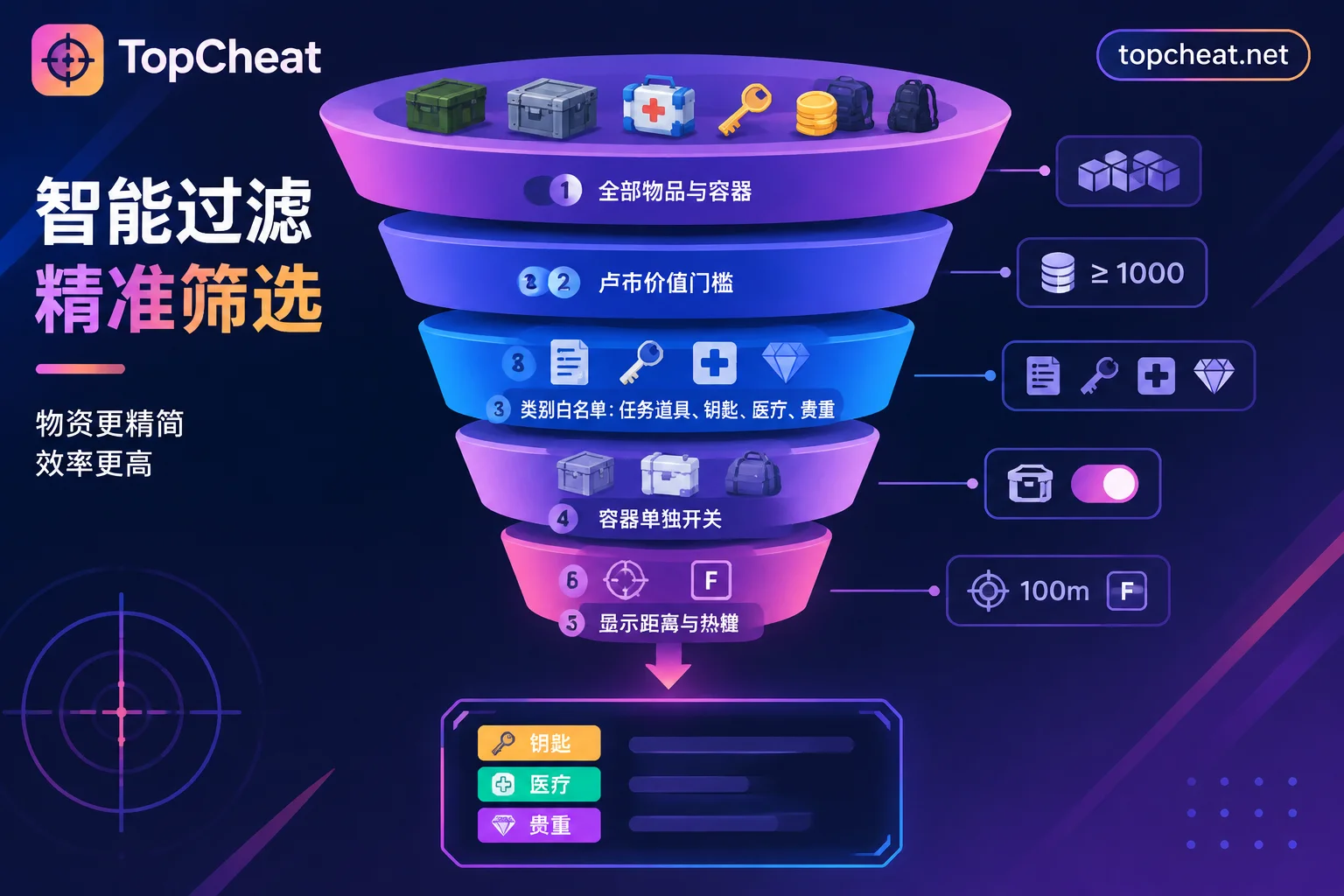
Recommended configuration order
1. Set the value threshold high first, then lower it
When starting, set the threshold relatively high so only a few high-value targets appear. If you see almost no indicators during a raid, gradually lower it until the on-screen information is just enough. Doing the opposite—starting with everything on and slowly raising it—wastes time sifting through screen clutter.
The threshold should also be adjusted with the wipe stage. Early in a wipe, players have little money, so many mid- and low-priced items are worth taking; later, prices for the same item can change significantly, and your standard for detouring may increase. It is recommended to review the threshold each wipe stage rather than sticking with old settings.
2. Use category whitelists to add back "cheap but needed" items
Filtering only by price misses a category: quest items, specific keys, and crafting materials may not have high market prices, but you might need them right now. These should be added back via category toggles or highlights, independent of the value threshold.
High-value medical items like LEDX and valuables like Bitcoin and graphics cards are inherently expensive and usually pass the value threshold. Giving them a distinct color can separate them from other items that meet the threshold.
3. Don't use too many color tiers
The purpose of color coding is to judge priority at a glance. Generally, three to four tiers are enough, for example: "high value / quest-related / normal qualifying / container". Too many colors become hard to remember and make little difference compared to no color coding.
4. Toggle containers separately
Container markers are better for planning loot routes—for example, whether a room has a weapon crate or if there's a buried stash nearby. They serve a different purpose from ground loot. It is advisable to give containers an independent toggle, turning it on while looting and off while moving, to avoid overlapping with item text.
5. Switch distance and hotkeys based on situation
During looting, you can increase display distance to plan routes ahead. When entering potential combat areas, shorten the distance or use a hotkey to turn off loot text, leaving the screen for player information. Choose a hotkey that is not easily pressed accidentally while firing or moving.
Adjust settings by playstyle
- Quest runs: Enable whitelists for quest items and keys, set a high value threshold, and keep only a few high-value indicators to avoid being led off route.
- Pure looting for money: Focus on value threshold, highlight medical items and valuables separately, enable all container markers, and increase display distance.
- Combat-heavy maps or times: Shorten loot display distance, keep only the highest value tier indicators, and use hotkeys to check the rest temporarily.
Regardless of playstyle, loot routes must eventually connect to extraction routes. If the cheat also provides extraction point display, you can confirm exit locations while planning loot routes. For ideas on combining extraction and loot information, refer to How to Use Extraction Point Markers in ARC Raiders Cheats, but the two games have different mechanics, so specific settings cannot be directly copied.
Why filtered prices may not match actual values
The accuracy of loot value filtering depends on the price data it uses:
- Flea market prices and trader buy prices differ. The same item can have a large price difference between the two. Which price the tool uses directly determines which items pass the threshold.
- Wipe stage affects prices. Prices fluctuate significantly early and late in a wipe; if price data is not updated for a long time, filtering results will deviate from actual market conditions.
Before use, it is best to confirm whether the cheat's valuation is based on real-time flea market prices or offline baseline prices, and how often it updates. If the product page does not specify, ask customer service.
There is also the version issue. After game patches and BattlEye anti-cheat updates, cheats require re-maintenance and adaptation. A version working does not mean all versions work, nor does it imply compatibility with all game modes. After each major game update, check the current status on the product page before use.
What to verify before checking out TopCheat Escape from Tarkov cheats
The TopCheat Escape from Tarkov product page publicly lists features: player/scav ESP, loot value filter, aimbot, and extraction point display. The loot value filter is the feature discussed in this article.
Currently, the public information on the page cannot confirm the following details; it is advisable to verify before purchasing:
- How customizable the loot filter is—for example, whether it supports importing item name whitelists or blacklists, or only provides value tiers;
- Which price data is used for item valuation and how often it is updated;
- The maintenance and adaptation status for the current game version.
Regarding plans, TopCheat sells daily, weekly, and monthly cards separately by game; license keys are not transferable across games; device binding and unbinding conditions are subject to the product page specifications. If you are using it for the first time and are unsure whether you will use loot filtering long-term, you can start with a shorter period to confirm the filtering method suits your habits before considering a longer period. Current prices and status can be viewed on the TopCheat Escape from Tarkov cheat product page.
If you also play Delta Force, you can compare How to Set Up Loot Filters in Delta Force Cheats. The two games have similar concepts, but different modes and item systems require separate adjustments.


Comments(0)